Add your RCB Bank Tap to Pay Visa® debit card to the Google Wallet™ app. Look for this symbol on your device:
If you receive a call or text from RCB Bank requesting information of any kind, hang up and call your local branch or a verified RCB Bank phone number.
Google Pay™
Google Pay™
Pay using Google Wallet on your phone or compatible smartwatch.
Seamless payments across all of your devices begin with a few quick steps. Add your card details to your Google Account, and they will be stored safely for a smoother checkout experience.
Getting started 9 is as easy as:
If you don’t have the Google Wallet™ app, it is available on Google Play.

Make sure you have your RCB Bank Tap to Pay Visa Debit card selected as the default payment method. Click here for instructions on setting up your payment methods in the Google Wallet™ app.
How to use with Google Pay™
Tap to pay everywhere you see one of these symbols9:

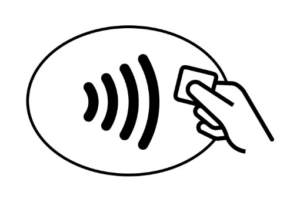
Using your mobile device:
- Unlock your phone and hold to the reader.
- You’re done when see the checkmark.
Using a compatible smartwatch:
- Set up your watch with the Google Wallet™ and RCB Bank Tap to Pay Visa Debit card. You can find setup instructions here: Tap to pay with your smartwatch – Google Wallet Help
- Hold your watch close to the contactless payment terminal until you feel a vibration or hear a sound confirming the payment.
- For express pay, you can tap to pay without opening the Google Wallet™ app, including for transit.
- Your watch must have been unlocked in the last 24 hours for express pay to work automatically.